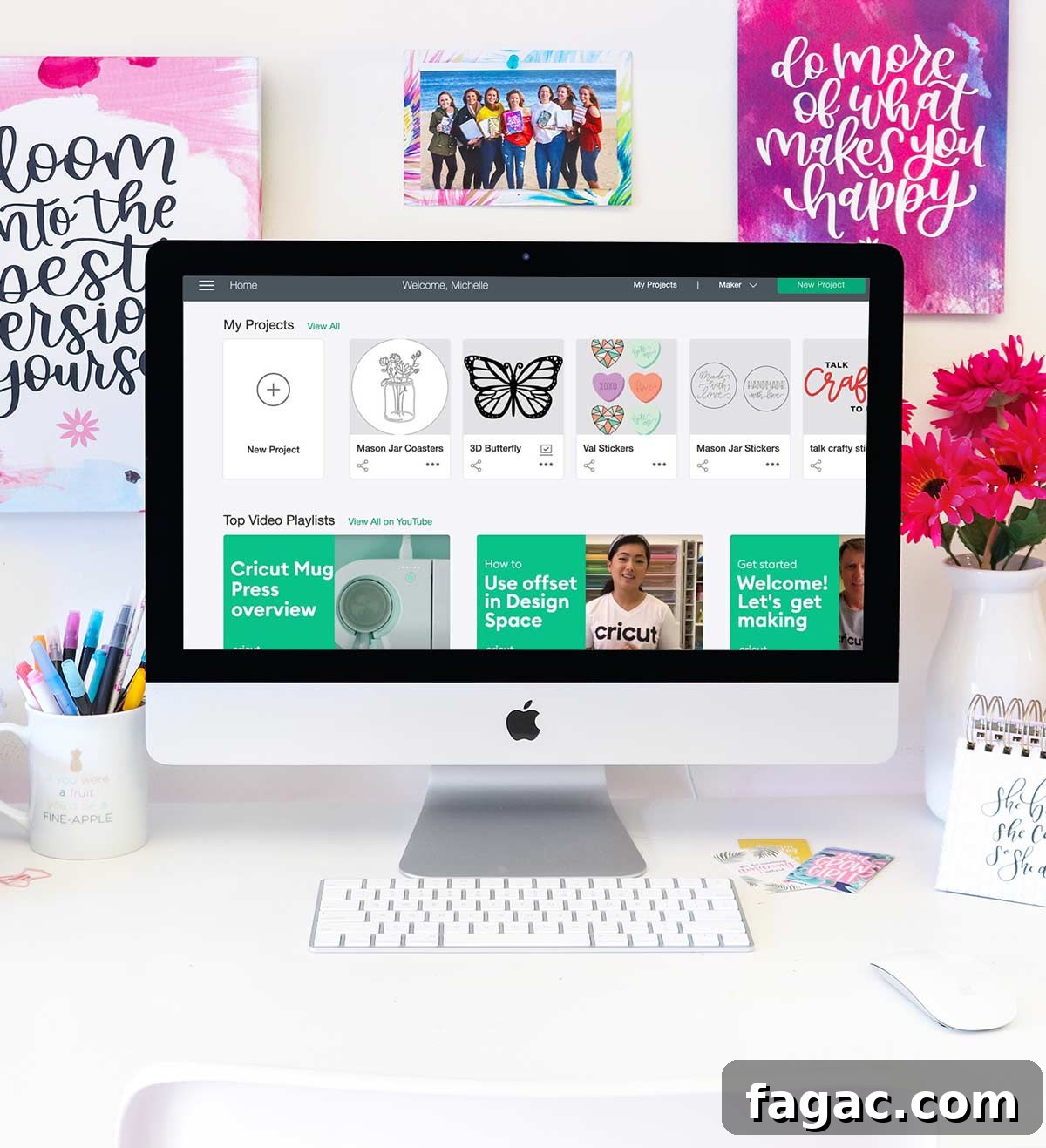
A guide to getting started with Cricut Design Space: What it is and how it works
This post is sponsored by Cricut. All opinions are my own. This post may contain affiliate links.
If you own or are considering a Cricut — whether a Maker, Explore Air 2 or Joy — you’ll use Cricut Design Space to create and send projects to your machine. Design Space is the app that connects your ideas to the Cricut hardware, enabling you to design, edit and cut wirelessly.
What is Cricut Design Space?
Cricut Design Space is Cricut’s official design software. It lets you design projects from scratch, browse thousands of images and fonts, and send your designs to a Cricut machine. The app works on desktop computers as well as phones and tablets, though some features vary between platforms. Design Space supports devices including the Cricut Joy, Cricut Maker, Cricut Explore and Explore Air series.
Is Cricut Design Space free?
Yes — Cricut Design Space is free to use. You can upload and cut your own files without a subscription. Supported upload formats include .svg, .dxf, .bmp, .jpg, .png and .gif. While the app itself is free, Cricut also offers a paid subscription called Cricut Access for expanded content and savings.
What is Cricut Access?
Cricut Access is an optional monthly or yearly subscription that provides access to a large image library, thousands of ready-to-make projects and hundreds of fonts. It also offers discounts on select products, designs and shipping. Access images and projects are marked in the library when applicable.
How does Cricut Design Space work?
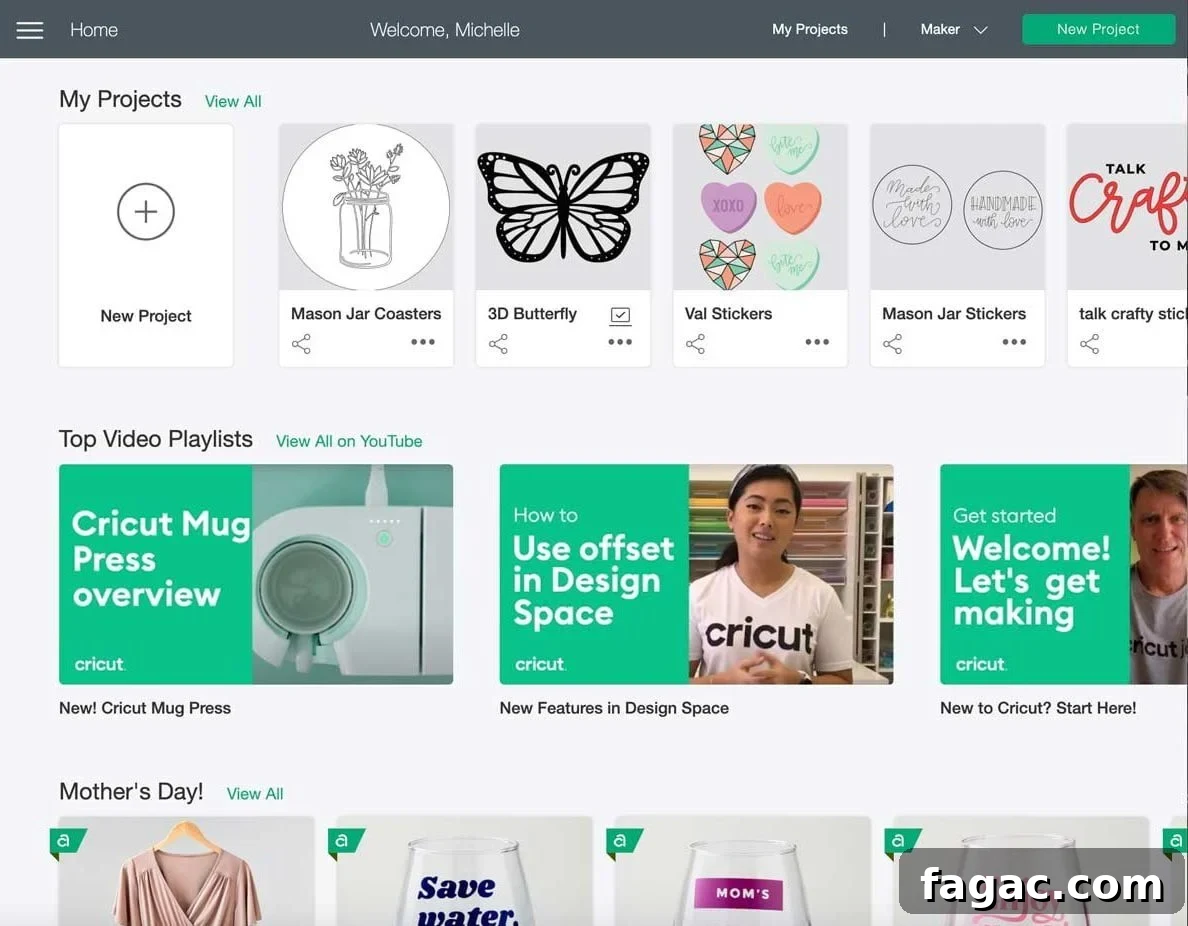
Design Space runs on desktop, mobile and tablet. Keep in mind the mobile/tablet apps may not include every desktop feature. When you open Design Space on a computer you’ll land on the home screen. To set up a new machine, click the menu icon in the top left and choose “New Product Setup.” Once your machine is connected, you can start creating projects.
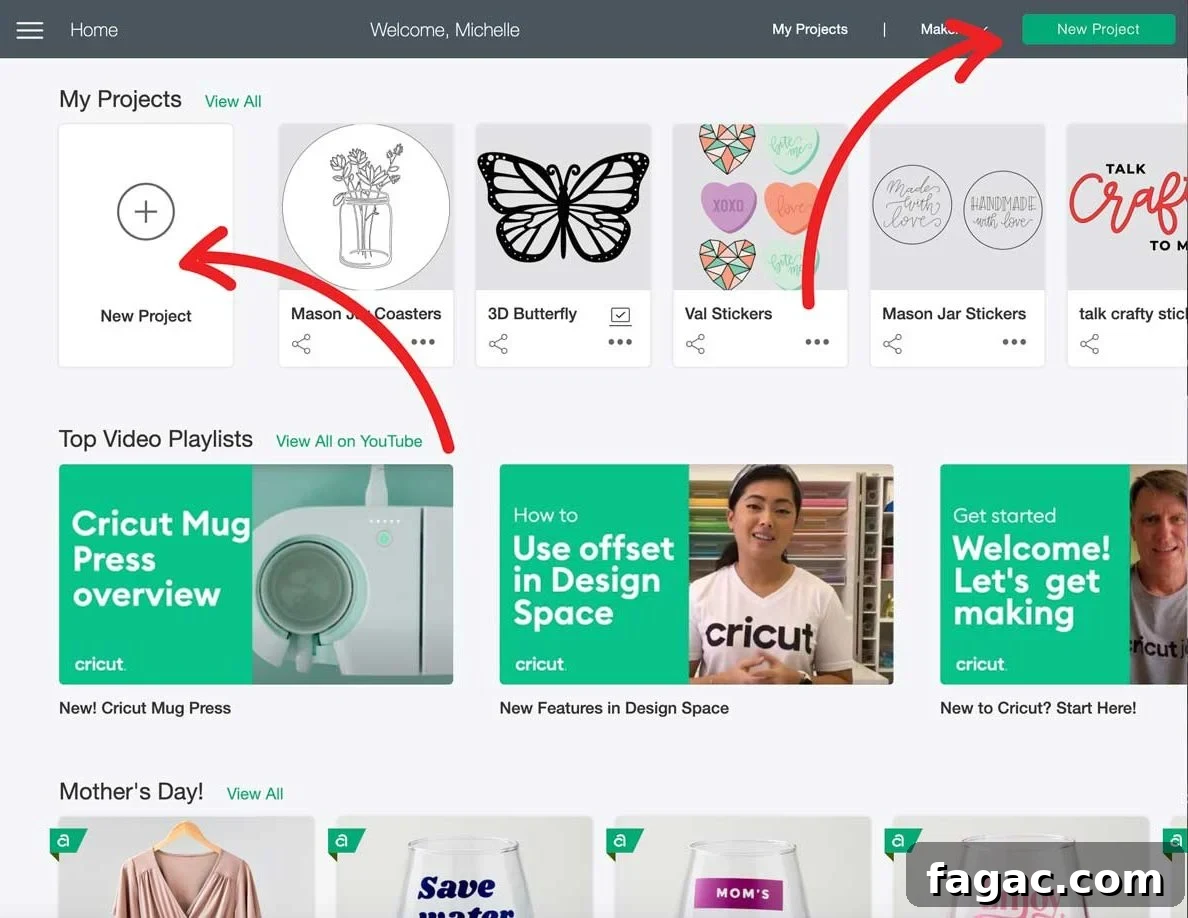
How to start a new project in Design Space
From the home screen you can start a new project two ways: click the green New Project button at the top right, or click the plus sign under “My Projects.” That opens the Canvas — the design workspace where you arrange images, shapes and text. The canvas background is gridded; each larger square represents one inch to match the Cricut mats.
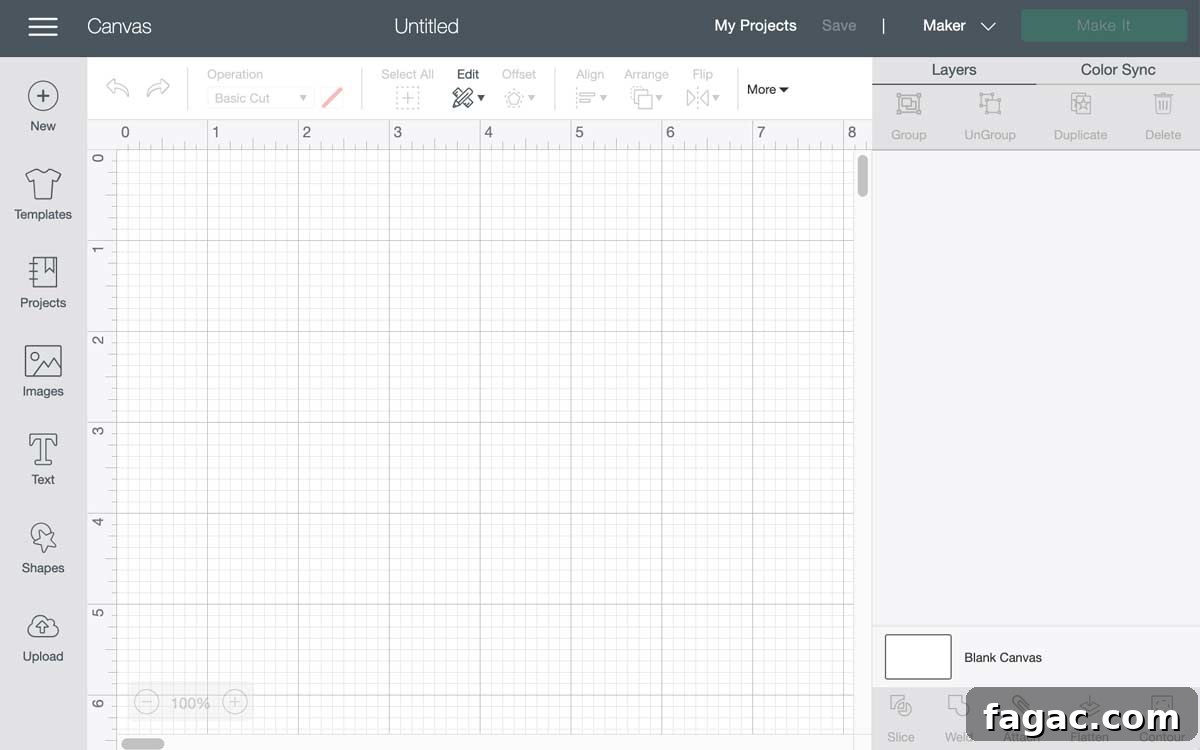
Toolbar
The toolbar runs down the left side of the Canvas and gives quick access to common tools:
- New — Create a new project.
- Templates — Use templates to preview designs on items such as shirts; templates include size options to match real products.
- Projects — Browse ready-made projects; many are included with Cricut Access.
- Images — Search the image library to insert graphics into your design. Access images are indicated within the library.
- Text — Add text to your design with a click to open a text box.
- Shapes — Insert basic shapes to build designs.
- Upload — Upload your own artwork in supported file formats to use in projects.
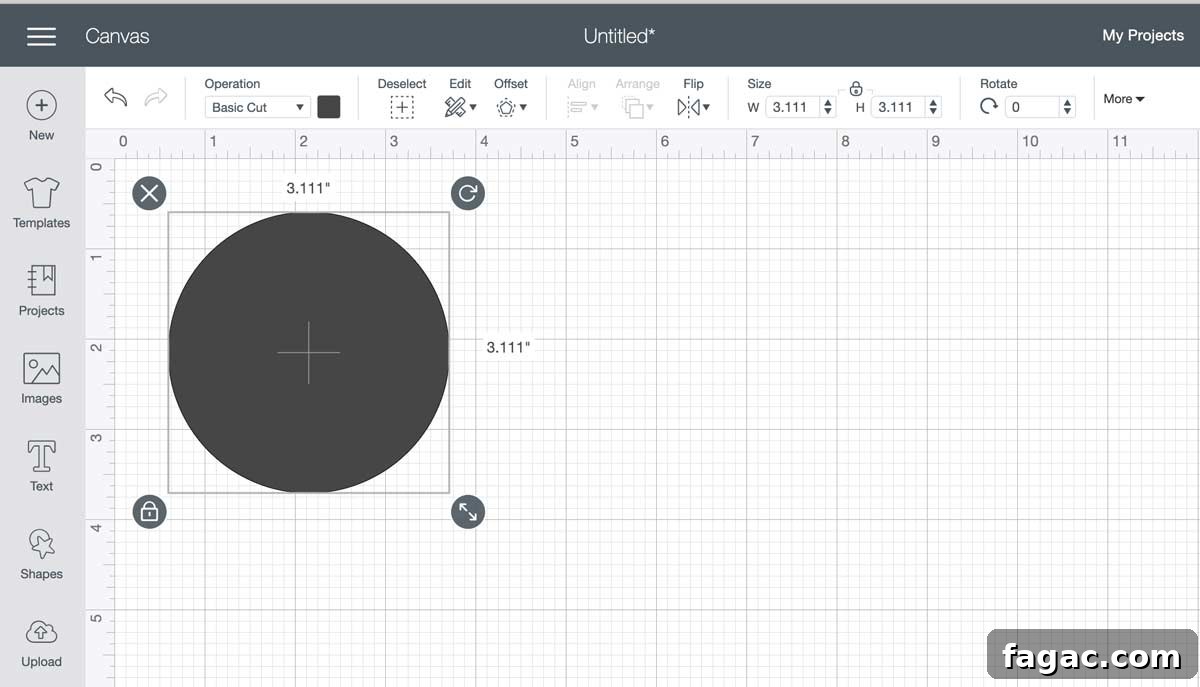
The top menu in Design Space
- Operation (formerly Linetype) — Choose the action for an object: Cut, Draw, Print then Cut, etc.
- Select All / Deselect — Quickly select or clear selection of objects.
- Edit — Cut, Copy and Paste objects on the Canvas.
- Offset — Create an offset or shadow path around an object to add layers or borders.
- Align — Align multiple objects (center, left, right) or distribute them evenly horizontally or vertically.
- Arrange — Send objects forward or backward to change stacking order on the Canvas.
- Flip — Flip an object horizontally or vertically.
- Size — Enter precise width and height values; click the lock to unlock aspect ratio if you need to change proportions.
- Rotate — Enter a rotation angle to rotate the selected object.
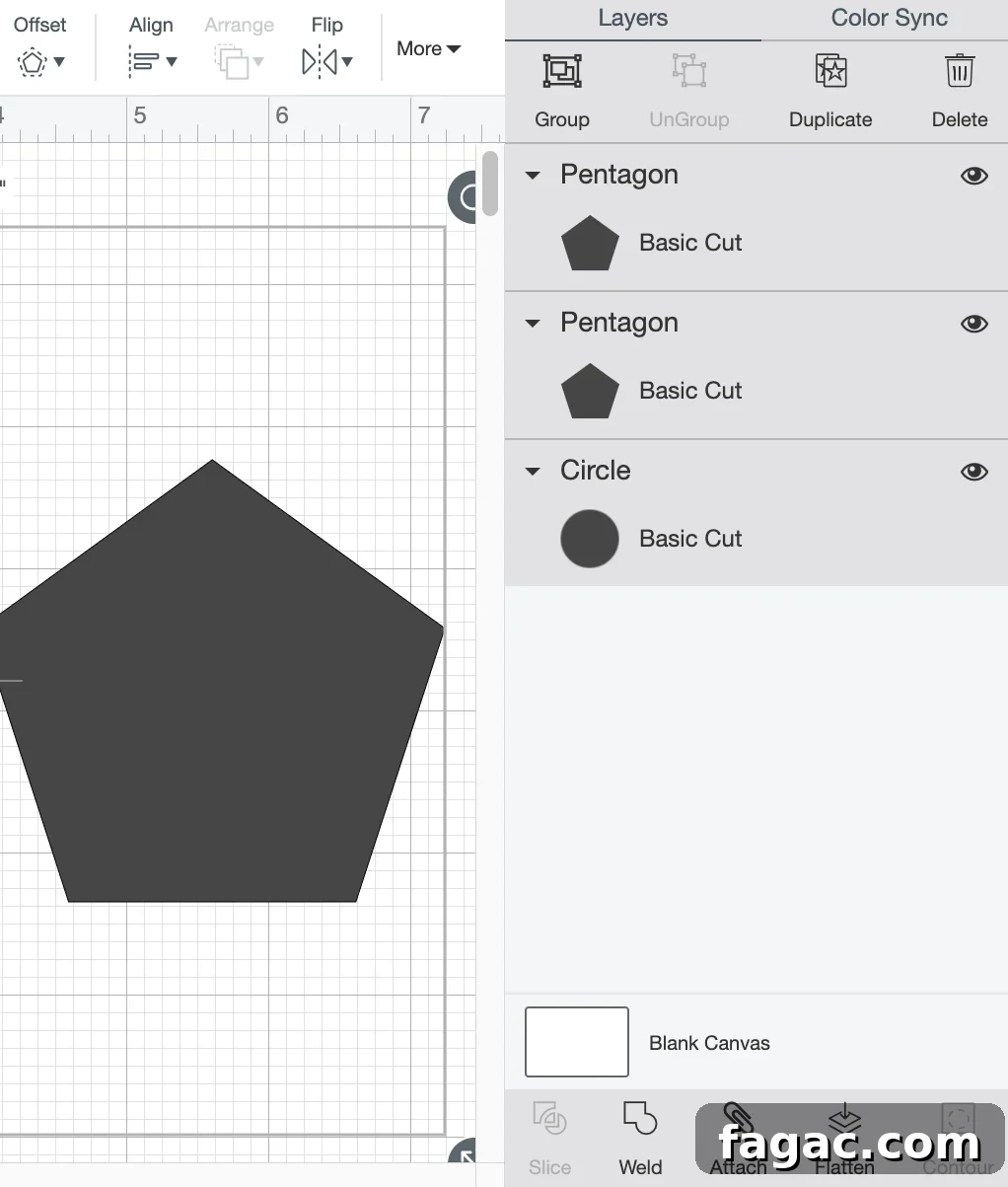
Layers panel
The Layers panel on the right of the Canvas lists every element in your project. Use it to select, group, ungroup, duplicate, delete or hide objects. The panel also provides important layer actions:
- Slice — Cut one shape from another or remove portions of objects.
- Weld — Combine shapes into a single image by removing overlapping cut lines — useful for script fonts and merged shapes.
- Attach — Keep layers in the same relative position on the mat and canvas; attach is also used to keep draw, score or foil layers aligned with cut layers.
- Flatten — Combine layers into a single Print Then Cut image.
- Contour — Hide portions of an image by removing unwanted cut lines.
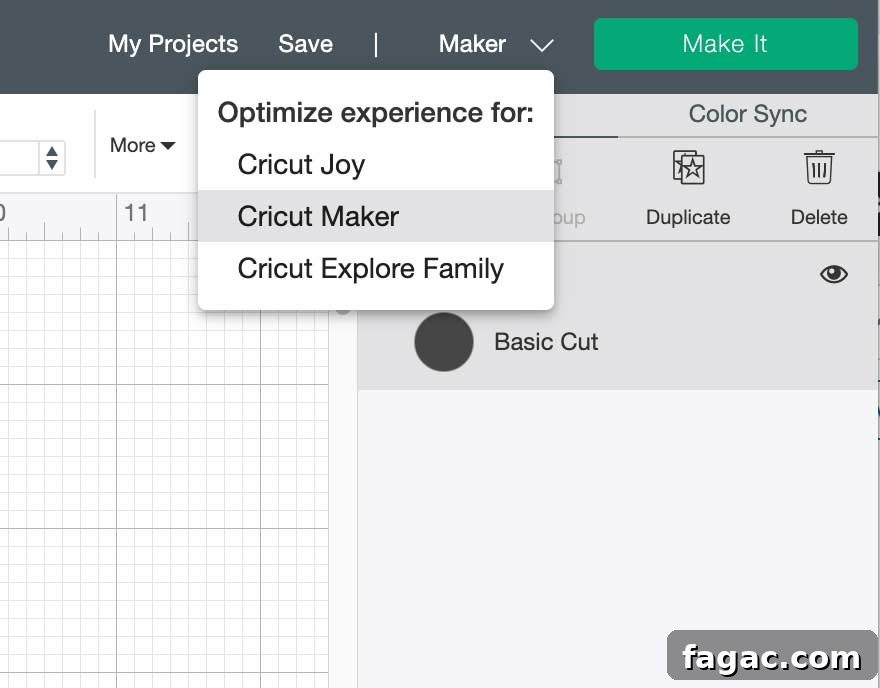
Selecting the Cricut machine you’re using
Before cutting, choose the correct machine from the device dropdown in the dark grey bar at the top right of Design Space (next to the Make It button). Options include Joy, Maker and Explore series machines. Selecting the right model matters because capabilities and available tools differ between machines.
When your design is ready, click the green Make It button and follow the on-screen prompts to set material, mat and tool options. If you want to learn more about materials and their settings, consult the Cricut materials guide within Design Space or the app’s help resources.